

How to train your AI Chatbot on Google Sheet?
-
Log into your Cube6, and choose the bot you wish to train.
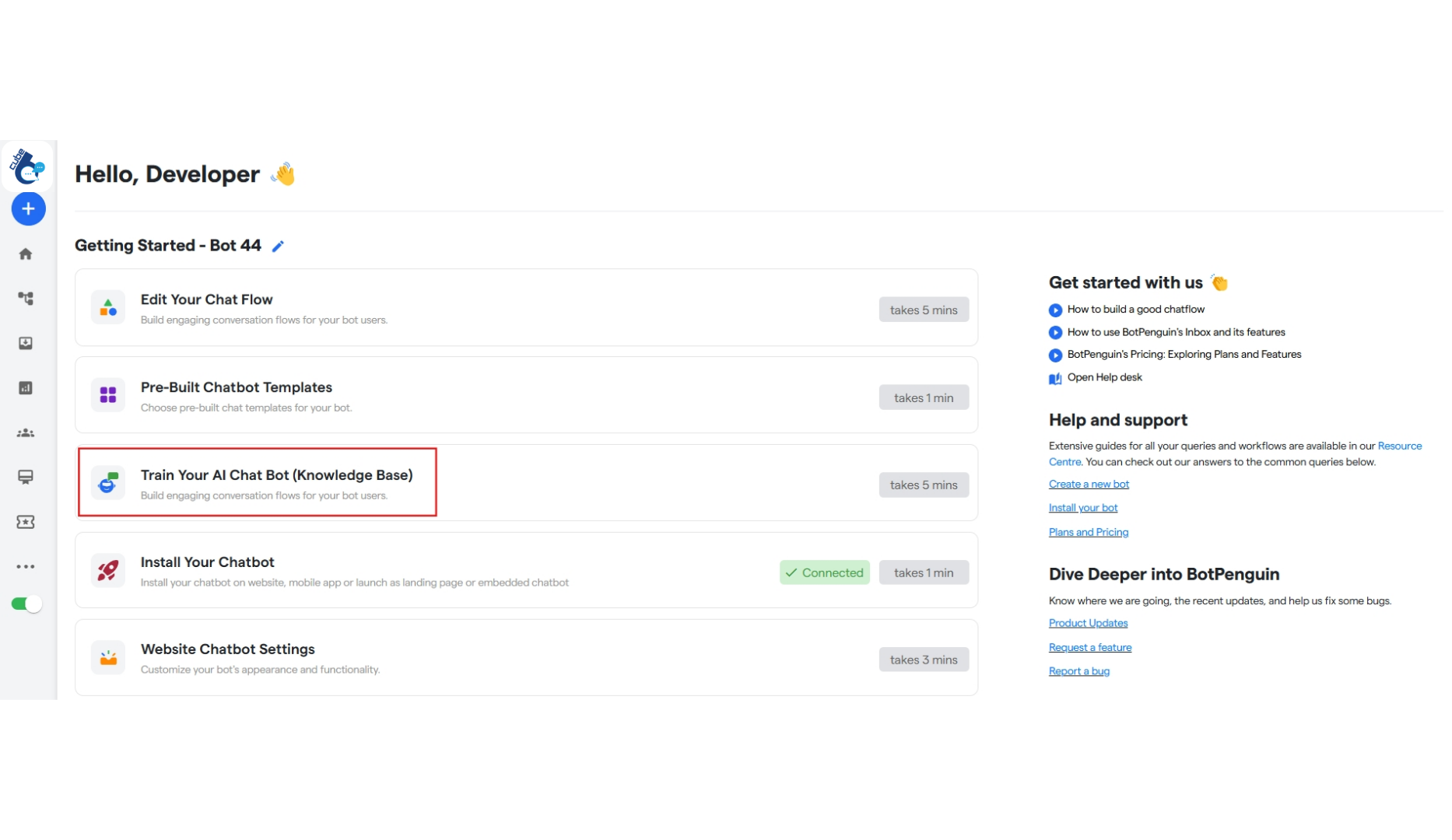
-
Click on “Train Your AI Chat Bot” and start training your AI Chat Bot.
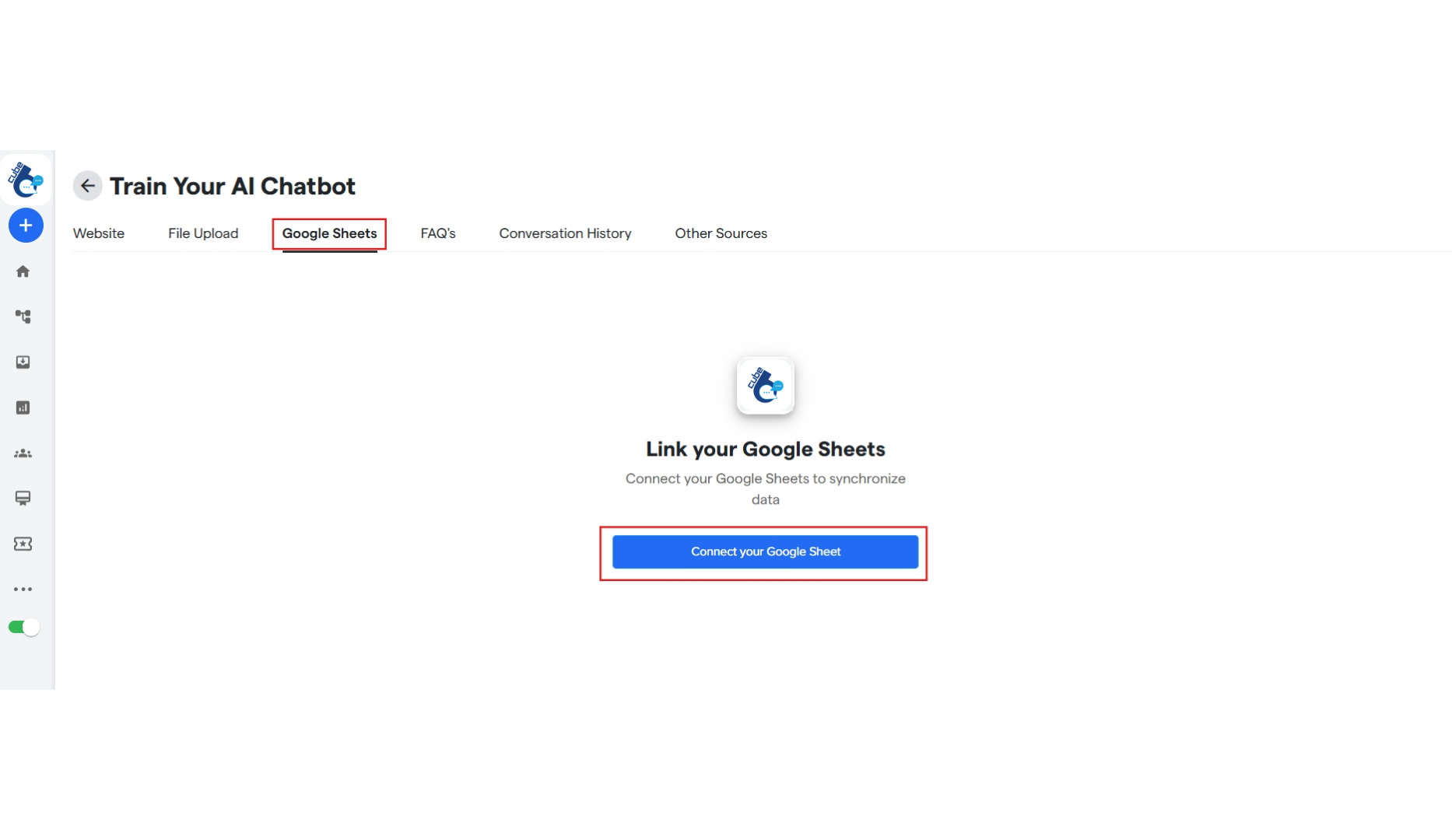
- Click on the “Google Sheet’ tab to train on sheets.
-
Click on “Connect your Google Sheet” to add the sheet according to which you want to train your AI Chat Bot.
 You may be redirected to the third party integrations page. Sign into your google account and then go back to the “Google Sheets” tab. Click on the “Connect your Google Sheet” again.
 - Add your Google Sheet URL and describe the content or purpose of this Google sheet.
- Click on “Sync Google Sheets”.
FAQ’s:
Here are some common FAQ’s regarding Google Sheets:What kinds of Google Sheets are supported for training?
What kinds of Google Sheets are supported for training?
Only public or shared sheets with proper access permissions (viewer or editor) can be synced. Ensure your sheet isn’t restricted or private.
My Google Sheets has multiple tabs. Will the bot train on all of them?
My Google Sheets has multiple tabs. Will the bot train on all of them?
Currently, the system typically trains on the first tab of the sheet. For multi-tab training, ensure relevant data is consolidated in a single tab.
What format should the sheet follow for best result?
What format should the sheet follow for best result?
Use a two-column format: one for Questions and one for Answers. Avoid using formulas, merged cells, or complex formatting.
Why was I redirected to another page while connecting to Google Sheets?
Why was I redirected to another page while connecting to Google Sheets?
That’s a normal part of the OAuth authentication process for Google account access. After signing in, return to the “Google Sheets” tab to complete the sync.
I clicked SYNC GOOGLE SHEETS but nothing seems to happen. What should I do?
I clicked SYNC GOOGLE SHEETS but nothing seems to happen. What should I do?
Refresh the page, ensure the sheet URL is correct and publicly accessible, and confirm you are logged into the correct Google account.
How can I add more than one Google Sheet?
How can I add more than one Google Sheet?
After syncing the first sheet, simply click the “Sync Google Sheet” button again (top-left corner) to repeat the process for additional sheets.
Will the bot automatically update when I make the changes to the sheet later?
Will the bot automatically update when I make the changes to the sheet later?
No, you need to manually resync the sheet after any edits to reflect the updates in your chatbot training.
Can I delete or disconnect a synced sheet later?
Can I delete or disconnect a synced sheet later?
Yes. Visit the connected sheets section and select the one you wish to remove or update. The training data will adjust accordingly.
I entered the correct sheet URL but it is not syncing. What could be wrong?
I entered the correct sheet URL but it is not syncing. What could be wrong?
Double-check the sheet’s sharing settings and make sure it’s not restricted. Also, confirm that you’ve completed the Google sign-in process correctly.