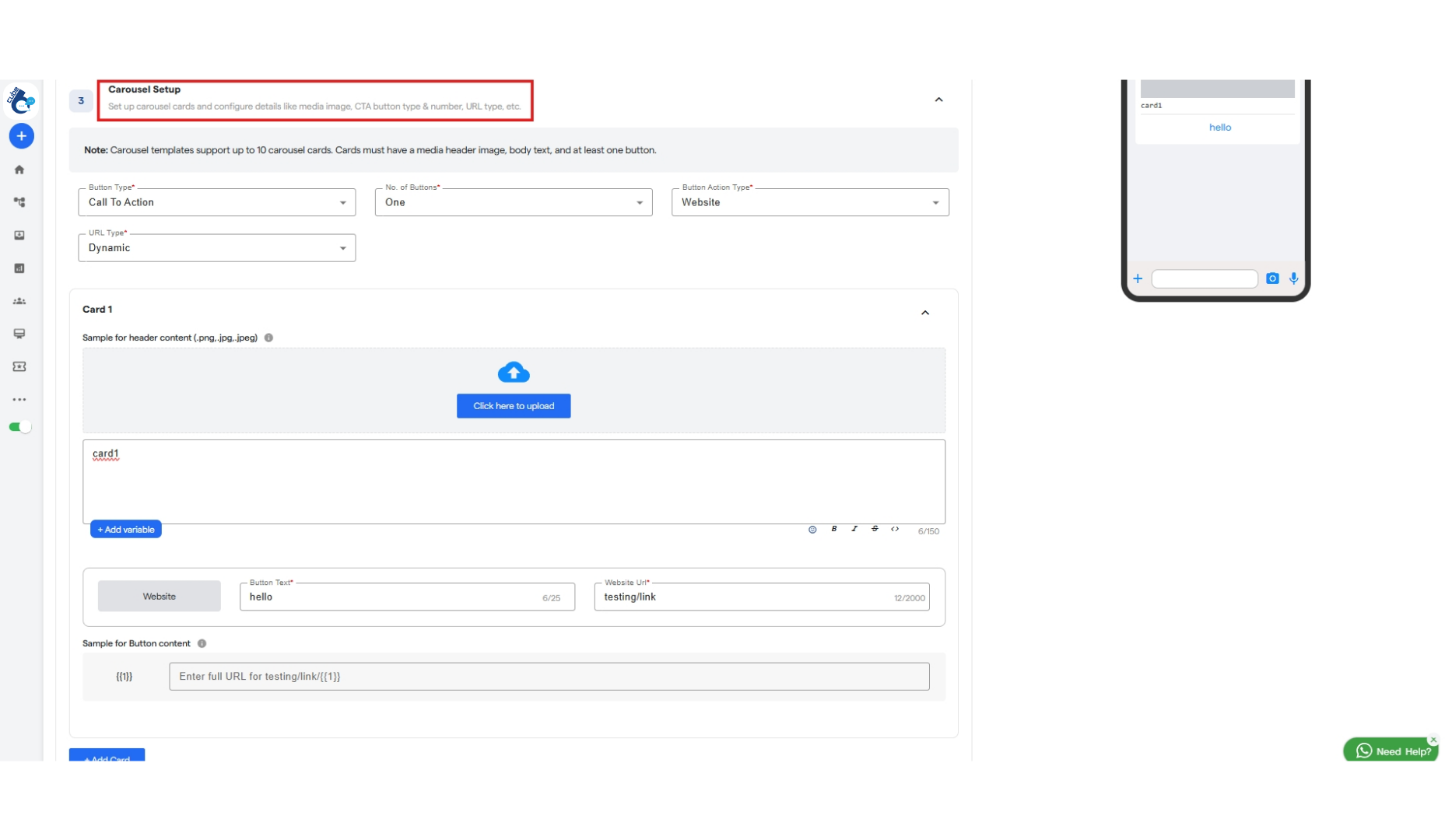
To setup yours Whatsapp Templates

Step 1: Navigate to your Whatsapp Bot. Step 2: Click on WhatsApp Automation. Step 3: Select Templates. Step 4: You will get option to select pre-defined Templates. You can either select from chatflow template or message templates.

CHATFLOW TEMPLATE

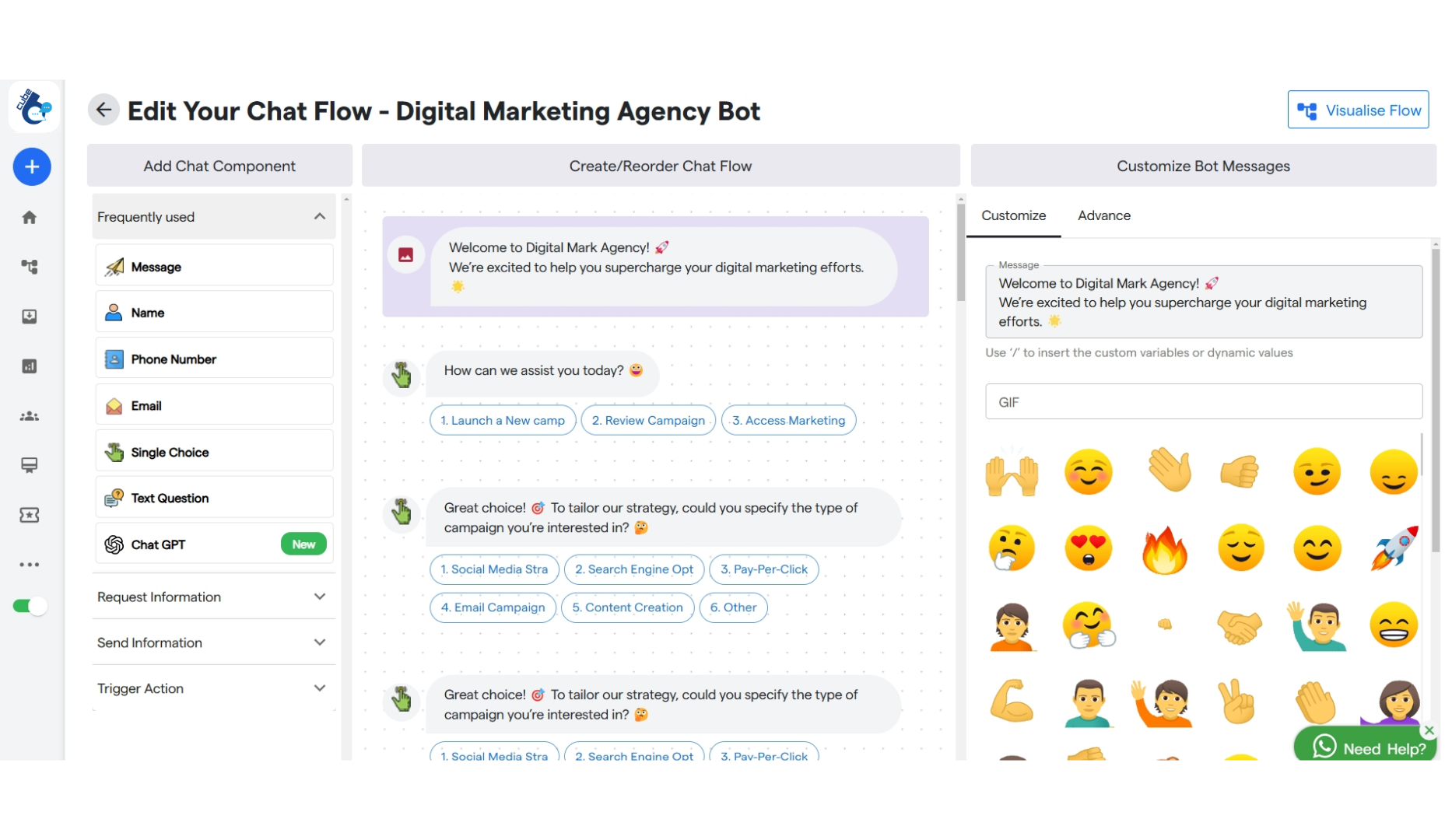
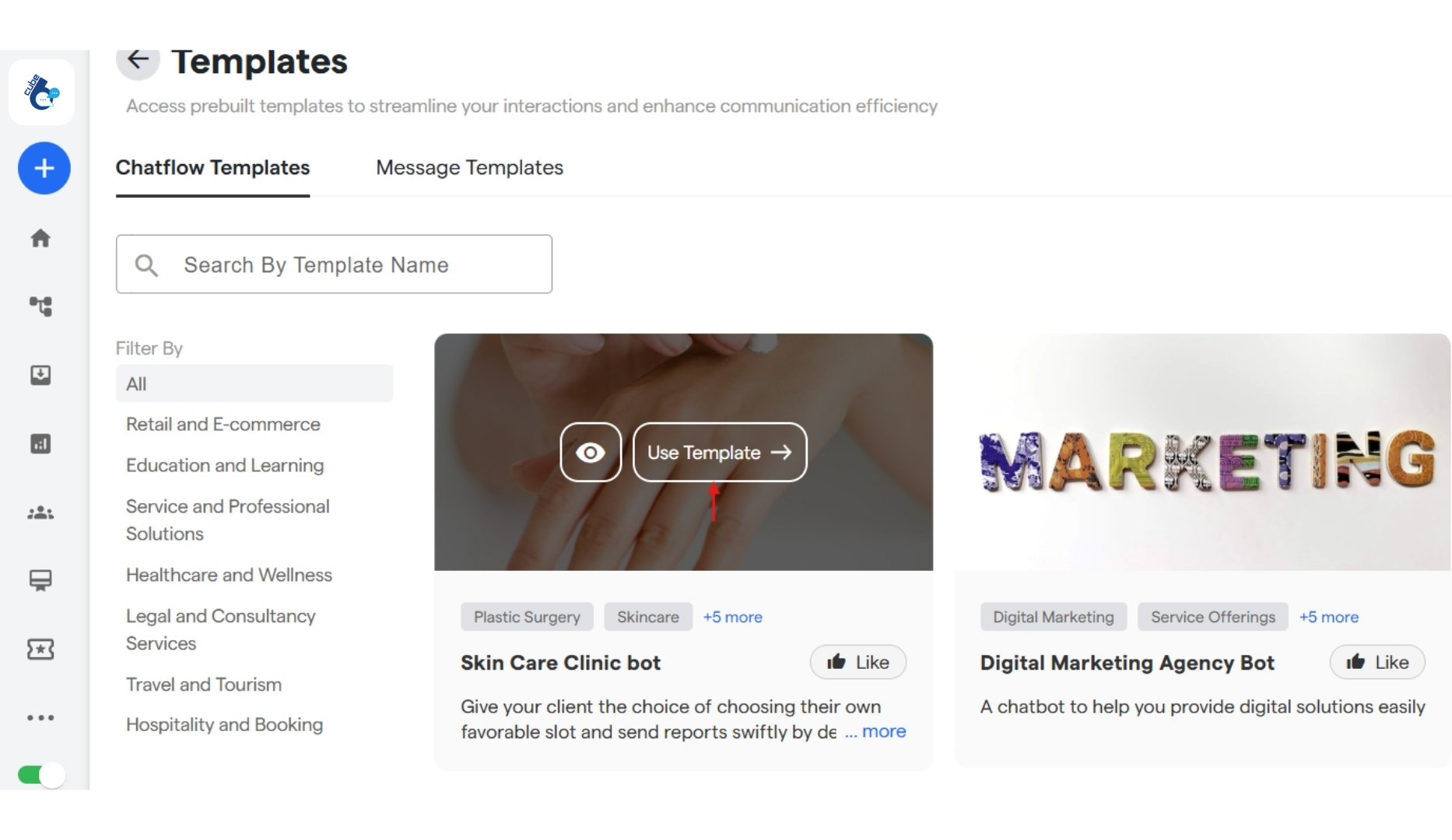
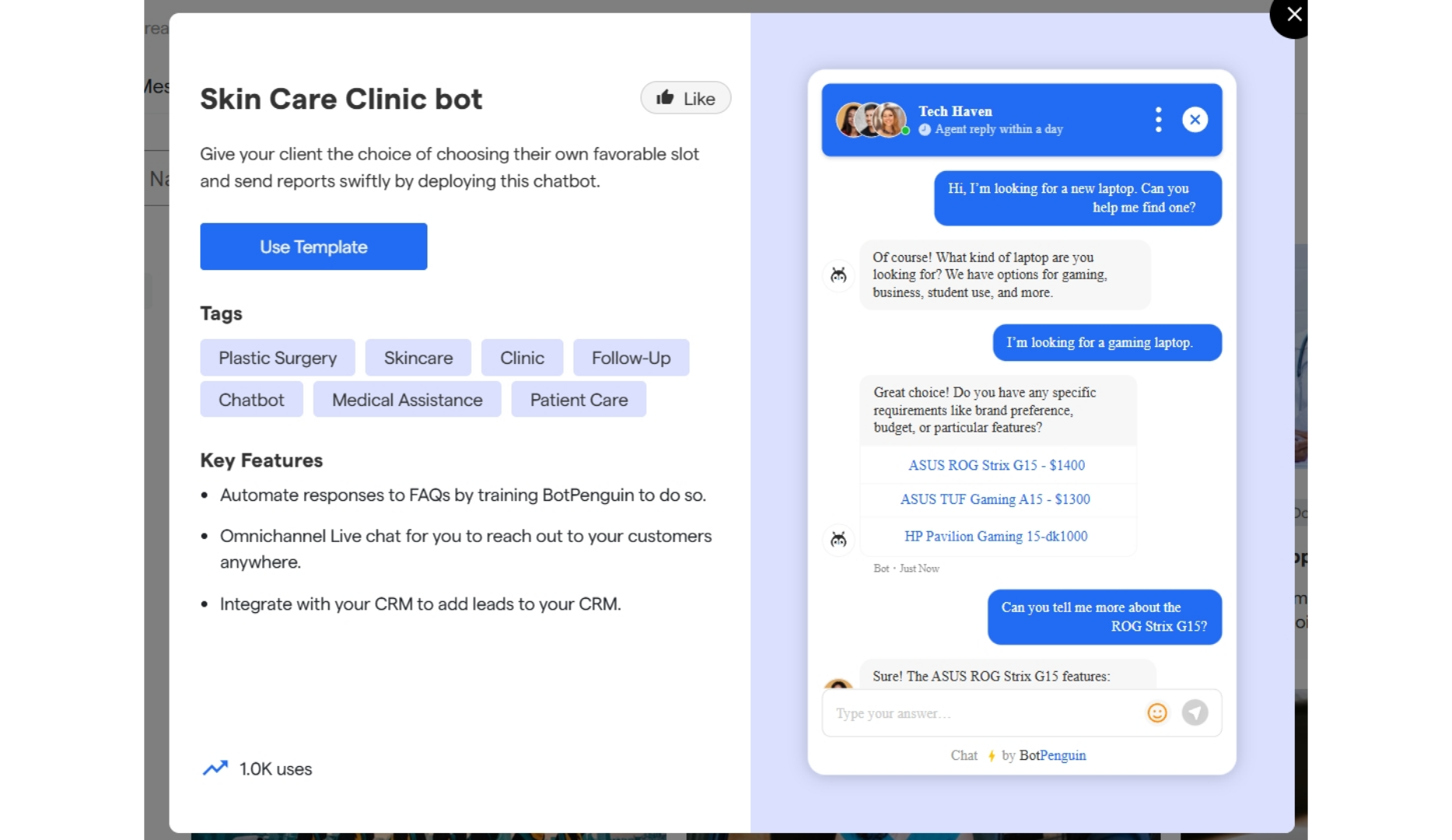
Step 5: When you hover your mouse on any of the template you will get option to take a preview or use template. 38 Whatsapp Template Setup  Cube6 Resource Centr 1 Pn Step 6: While taking a preview you can click on Use Template to directly use it in your chatflow. 38 Whatsapp Template Setup  Cube6 Resource Centr 2 Pn Step 7: Once clicked on β€œUse Template” your chatflow template will be ready to be used and edited inside β€œEdit Your Chat Flow”. You can customize it according to your requirements. 38 Whatsapp Template Setup  Cube6 Resource Centr 3 Pn
MESSAGE TEMPLATE

Step 8: Click on Message Templates to select a pre-defined template form β€œTemplates Gallery” or create and customize your personalised template by selecting β€œYour Templates”. Step 9: When you hover on any of the pre-defined templates you can either take a preview first or directly click on Use Template. 38 Whatsapp Template Setup  Cube6 Resource Centr 4 Pn
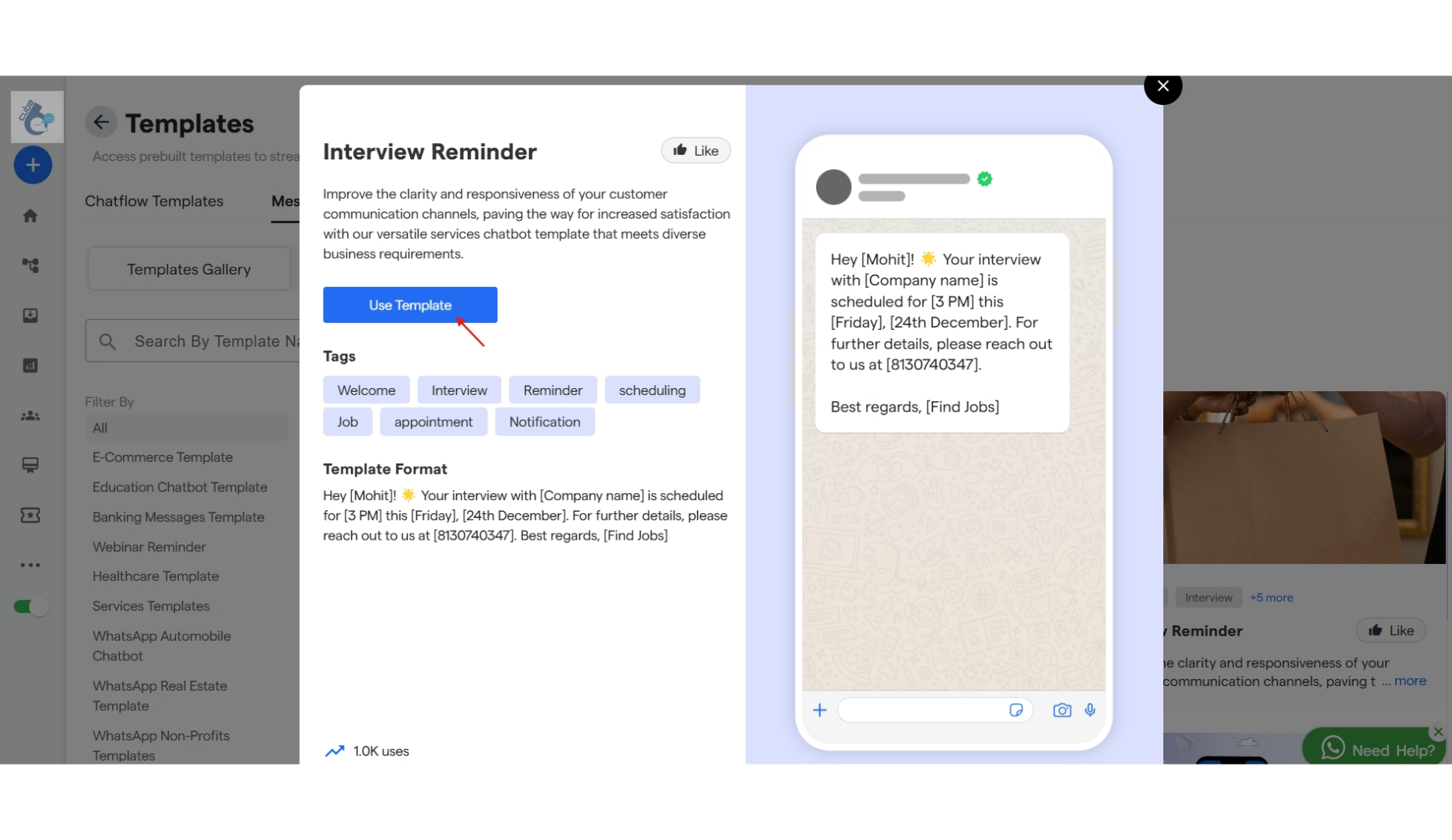
With Regular Template

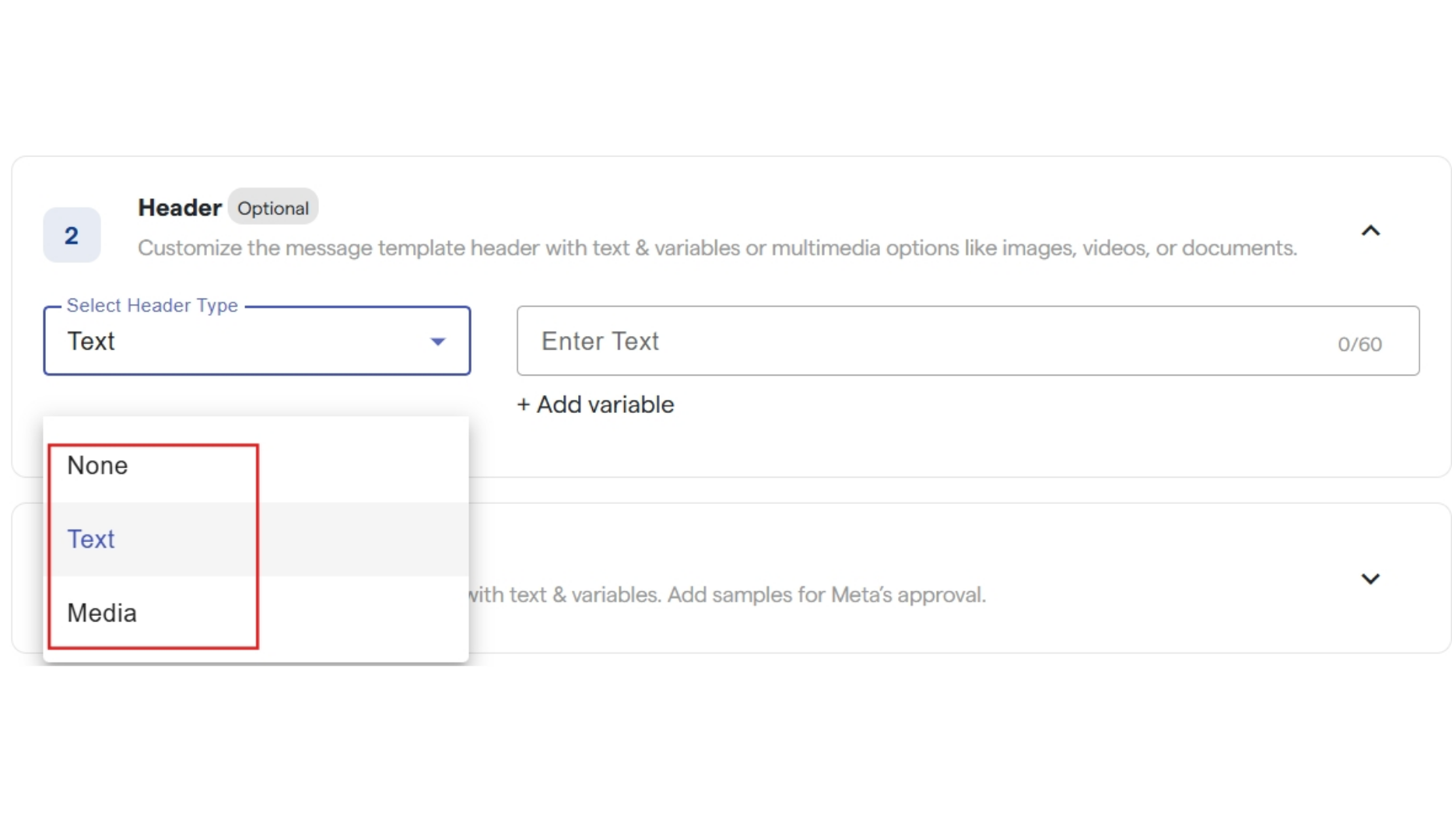
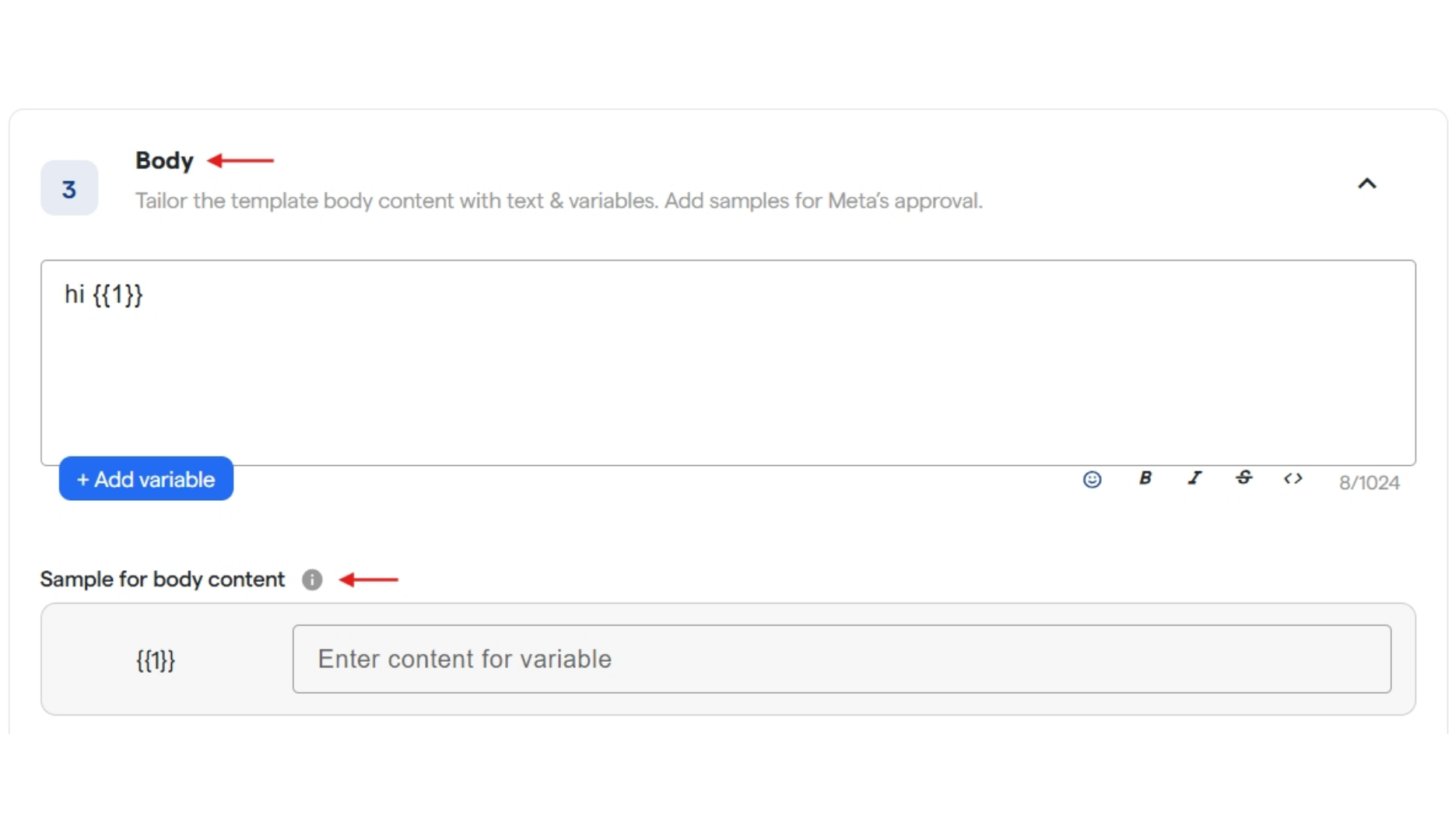
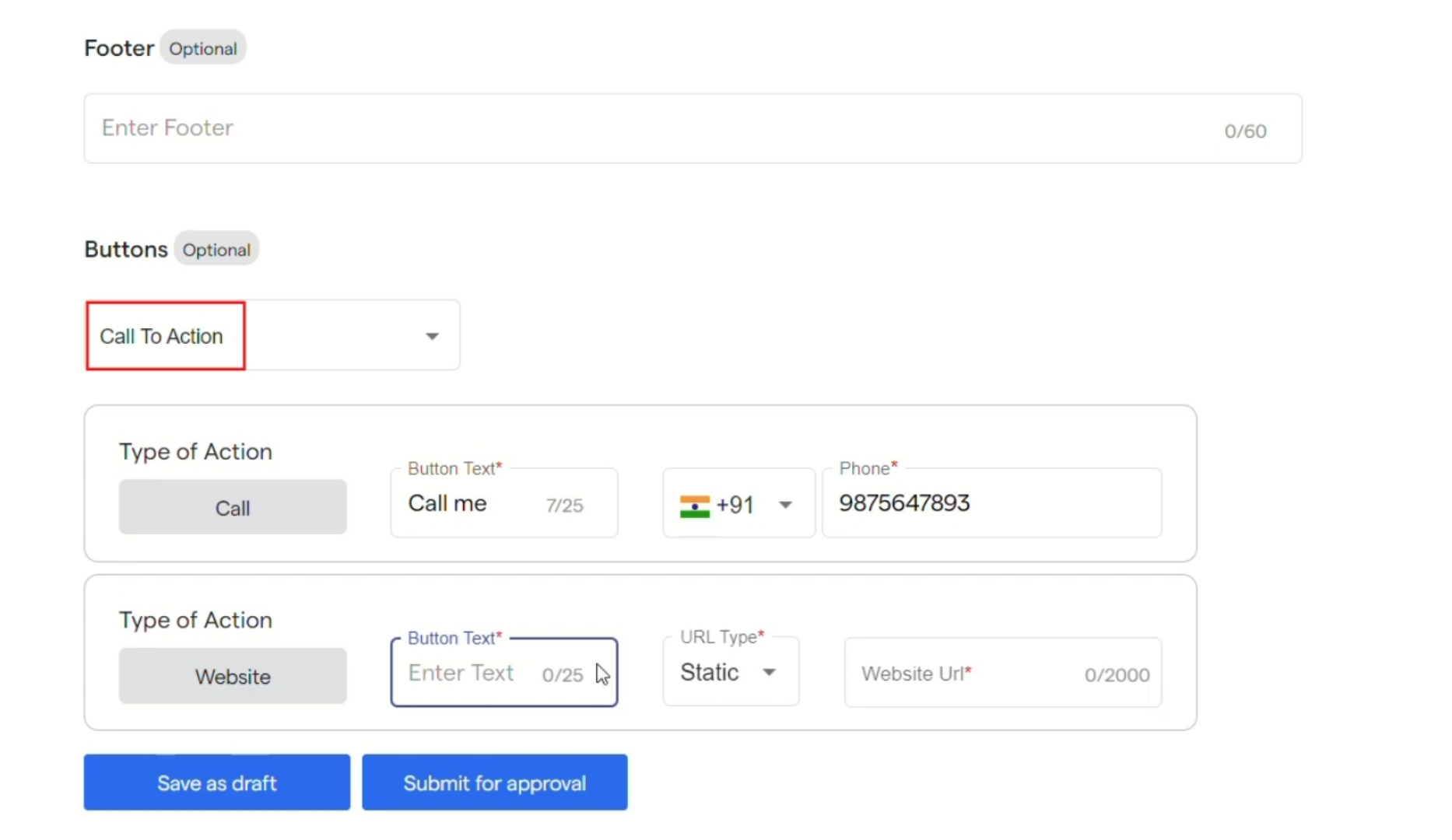
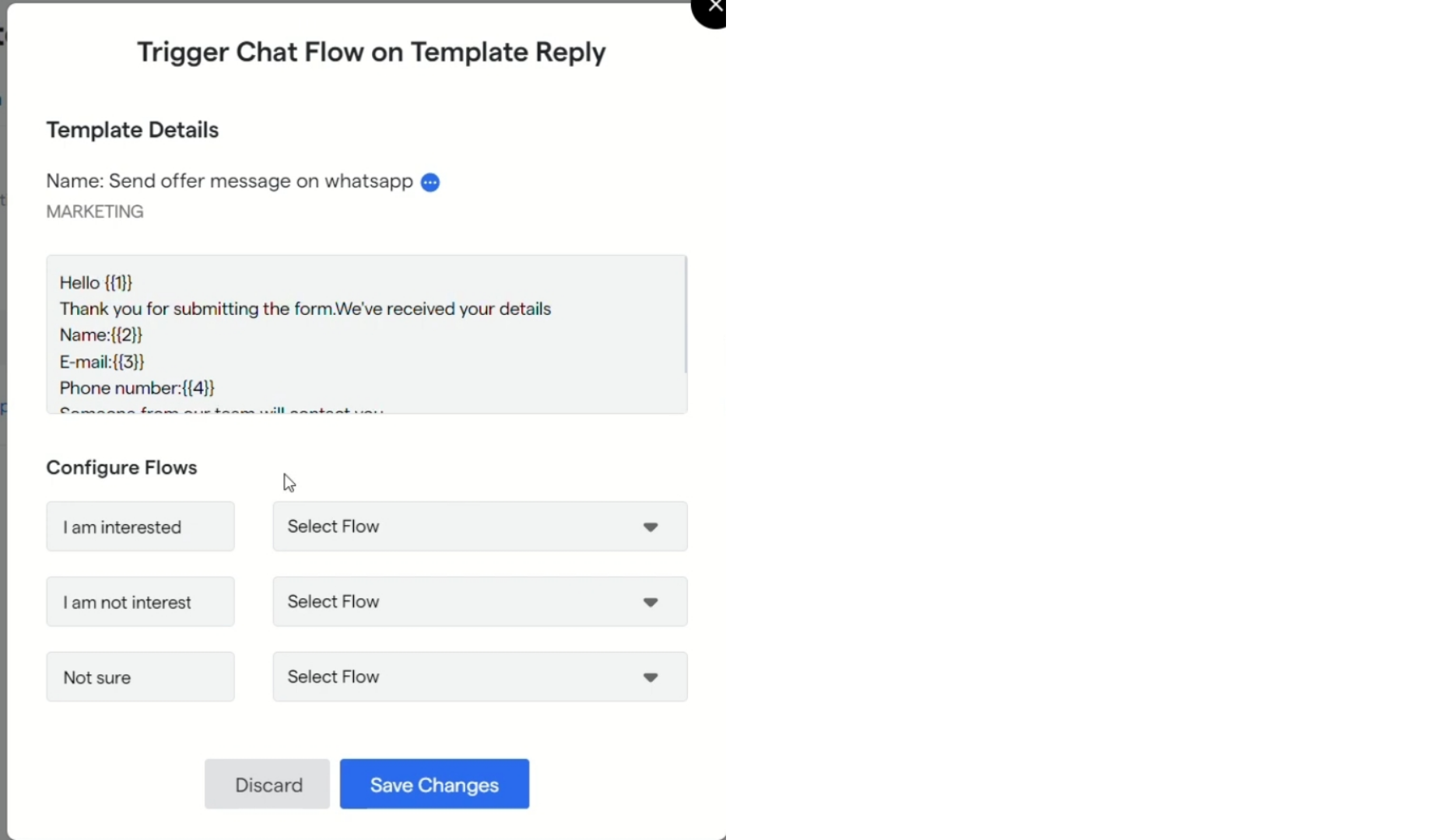
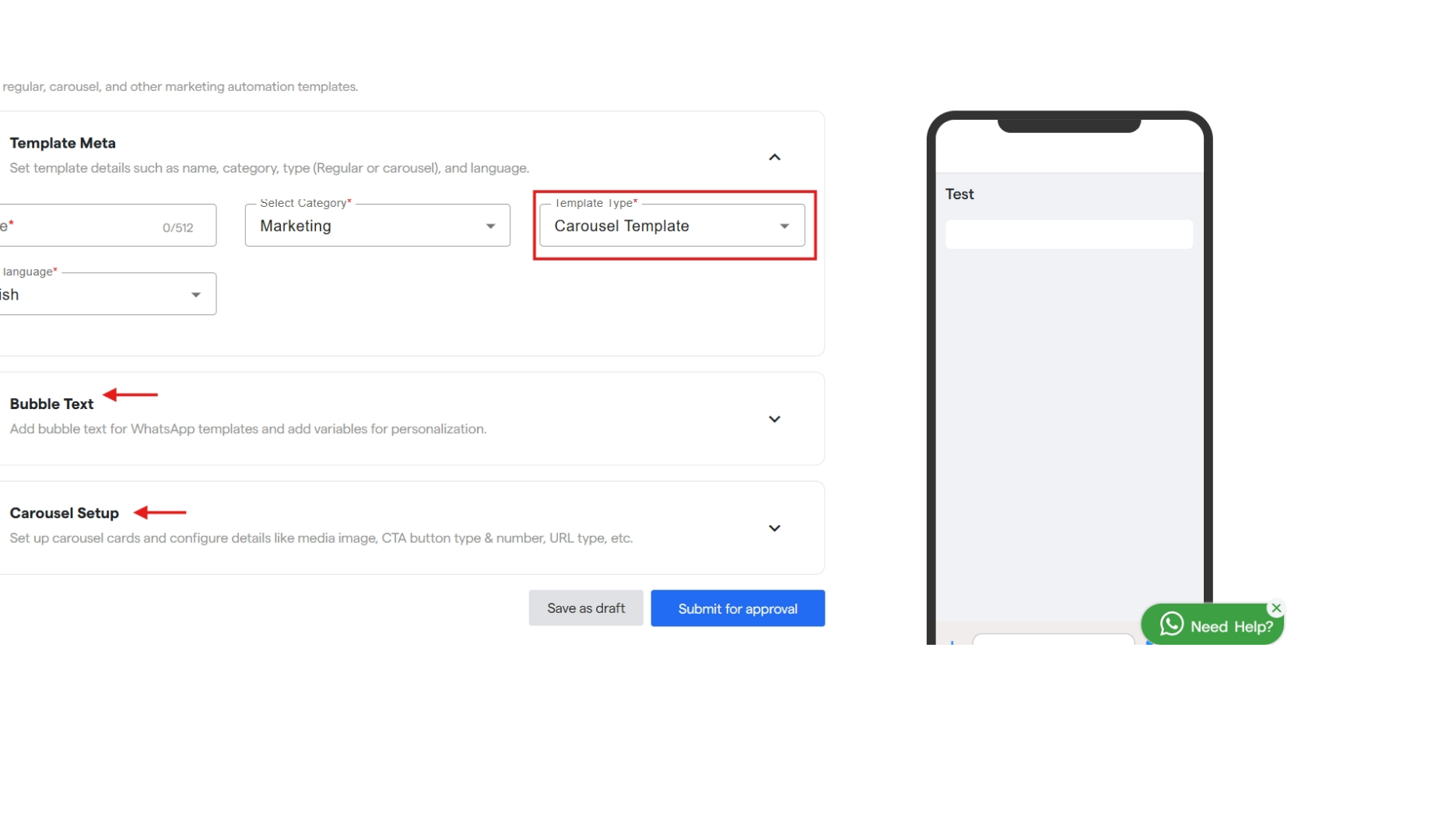
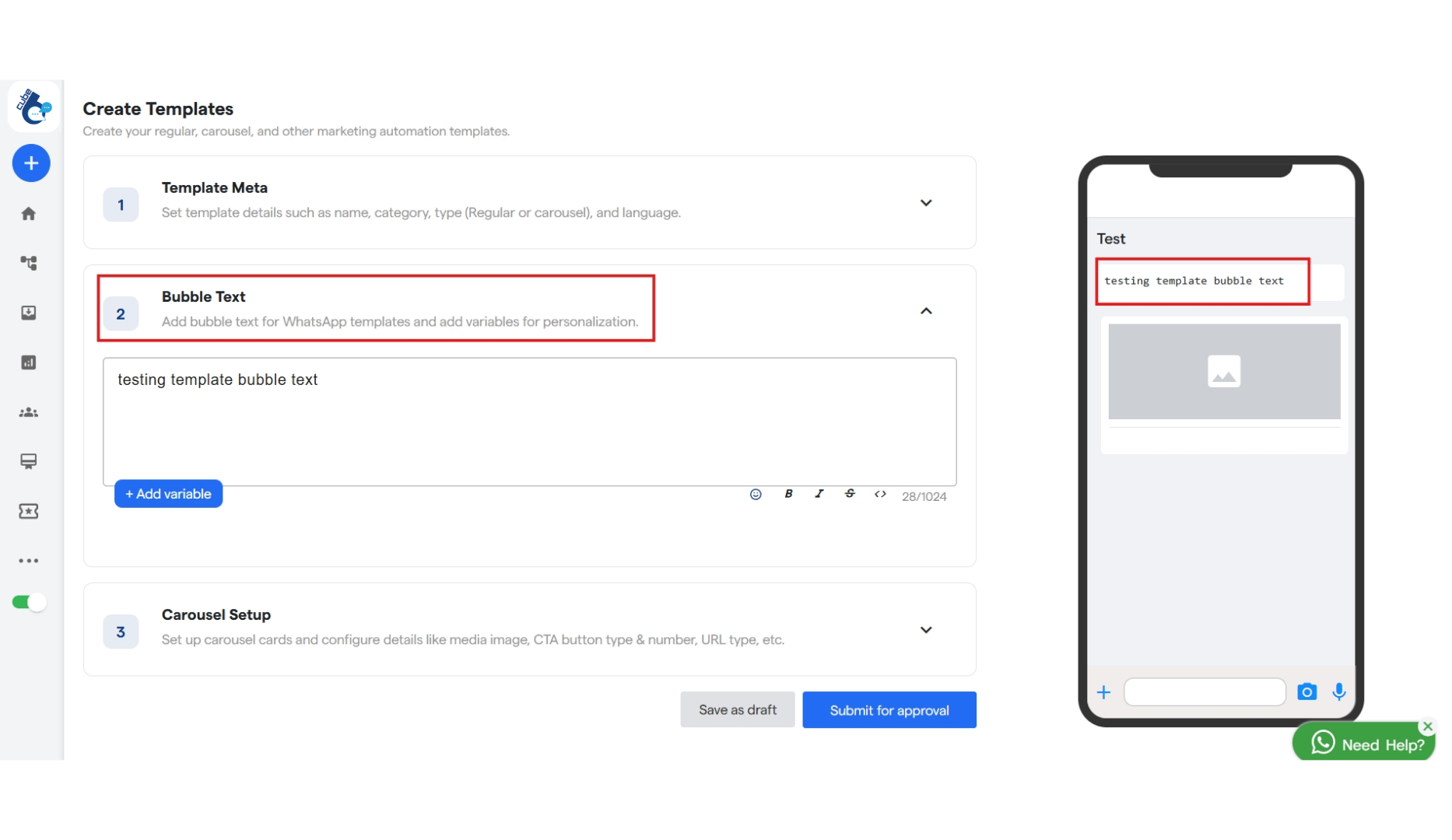
Step 10: You can create a new template in Your Template section. By selecting β€œCreate Template”. Step 11: Under Create Templates section, enter name/title and category for your template. And also select a language for the same. You can select a type for your template by clicking on the drop down. 38 Whatsapp Template Setup  Cube6 Resource Centr 5 Pn Step 12: Now to configure your template, select a format for you header from the drop down and enter the header text you want to display to your customer. Or you can select a media file you wish to share, it can be either an image, video or a document. 38 Whatsapp Template Setup  Cube6 Resource Centr 6 Pn Step 13: Enter the content for your template inside the box named body. You can use to create a variable in the body and configure that later. 38 Whatsapp Template Setup  Cube6 Resource Centr 7 Pn Step 14: Enter the content for Footer that will be displayed in your template. Step 15: You can also add Buttons in your templates. After selecting the type for buttons from the drop down you can configure them as shown below. Step 16: Click on β€œsave as draft” if you want to do changes later and click on β€œSubmit for approval” if your are done creating the template. 38 Whatsapp Template Setup  Cube6 Resource Centr 8 Pn Step 17: In β€œManage Templates” your template will be visible. It will get approved by WhatsApp once submitted for approval. Step 18: Under actions, you have options to copy template id, to delete the template and select a flow for your buttons inside the template. Step 19: Similarly you can configure flows for your template reply using buttons added in it. 38 Whatsapp Template Setup  Cube6 Resource Centr 8 Pn Step 20: When you select β€œCarousel” as Template Type. You will get options namely: Step 21: β€œBubble Text” in which you can add text for the template and add variable for the same. Step 22: β€œCarousel Setup” in which you can set up cards and configure their media and add CTA buttons 38 Whatsapp Template Setup  Cube6 Resource Centr 10 Pn Step 23: Inside β€œBubble Text” you will get a text box in which you can enter your text and can click on β€œAdd Variable” to add a variable inside your text. 38 Whatsapp Template Setup  Cube6 Resource Centr 12 Pn Step 24: Inside β€œCarousel Setup” you can select a button type which can be β€œCall to Action” or β€œQuick Reply”. And accordingly you can fill the following details as asked. Step 25: After that create card for your carousel. Add an image and type something about it. Step 26: Then add a button just below the card. Which will be functional and clickable. Similarly you can add up to 10 cards for your carousel. 38 Whatsapp Template Setup  Cube6 Resource Centr 12 Pn Step 28: Then click on β€œSave as draft” or β€œSubmit for approval”. Done! You have created your WhatsApp Template. Now wait for getting it approved by meta.