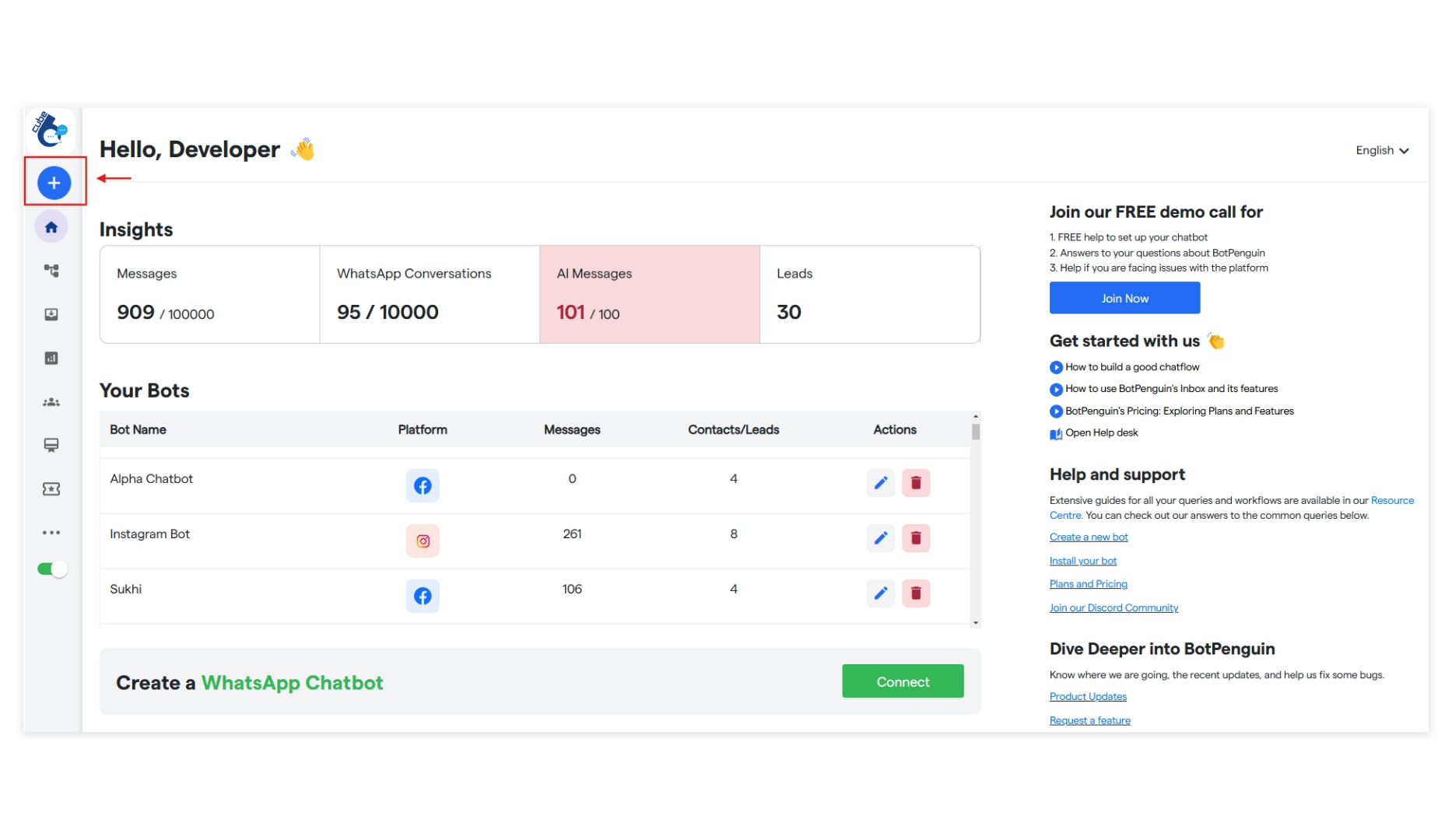
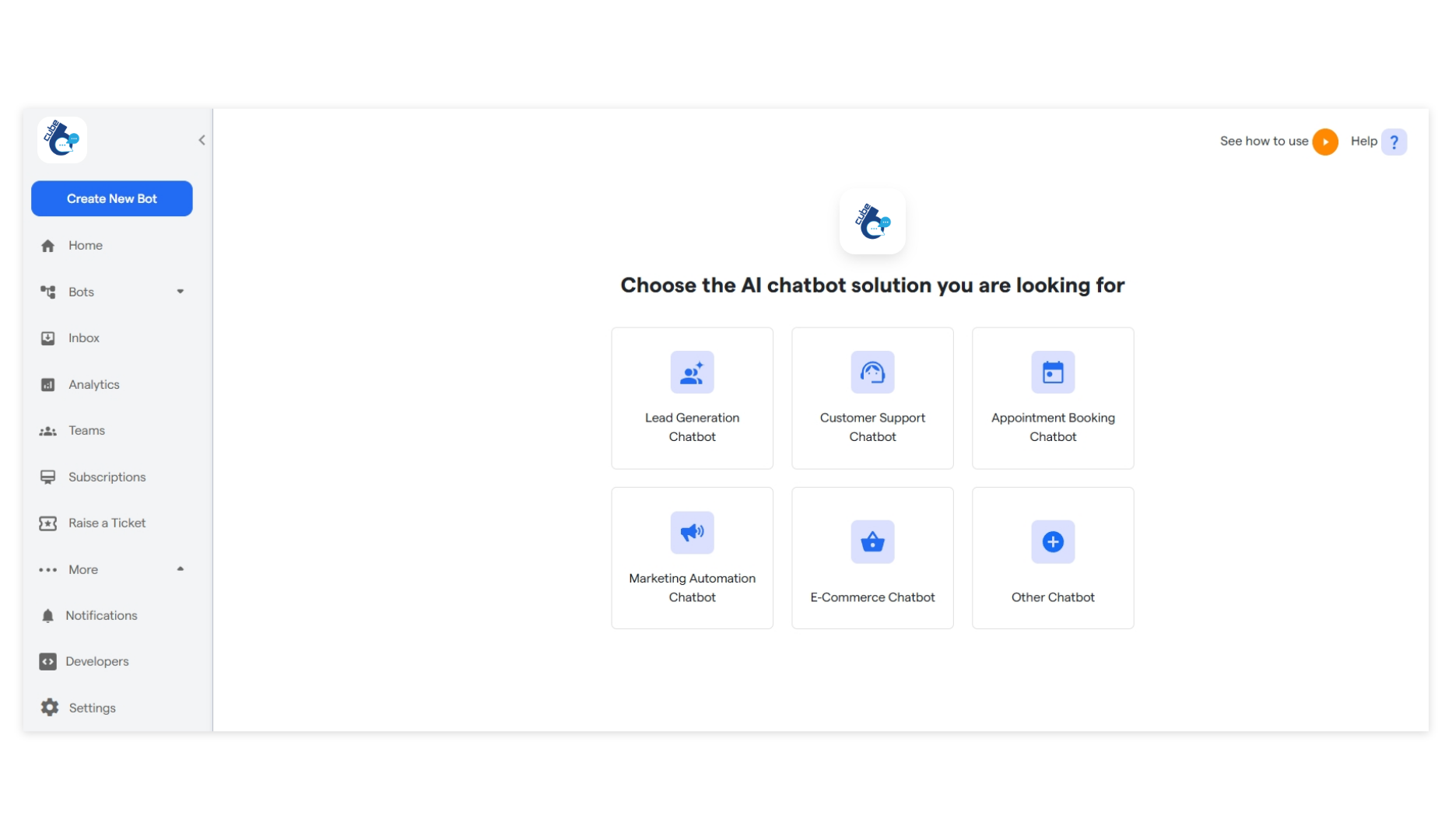
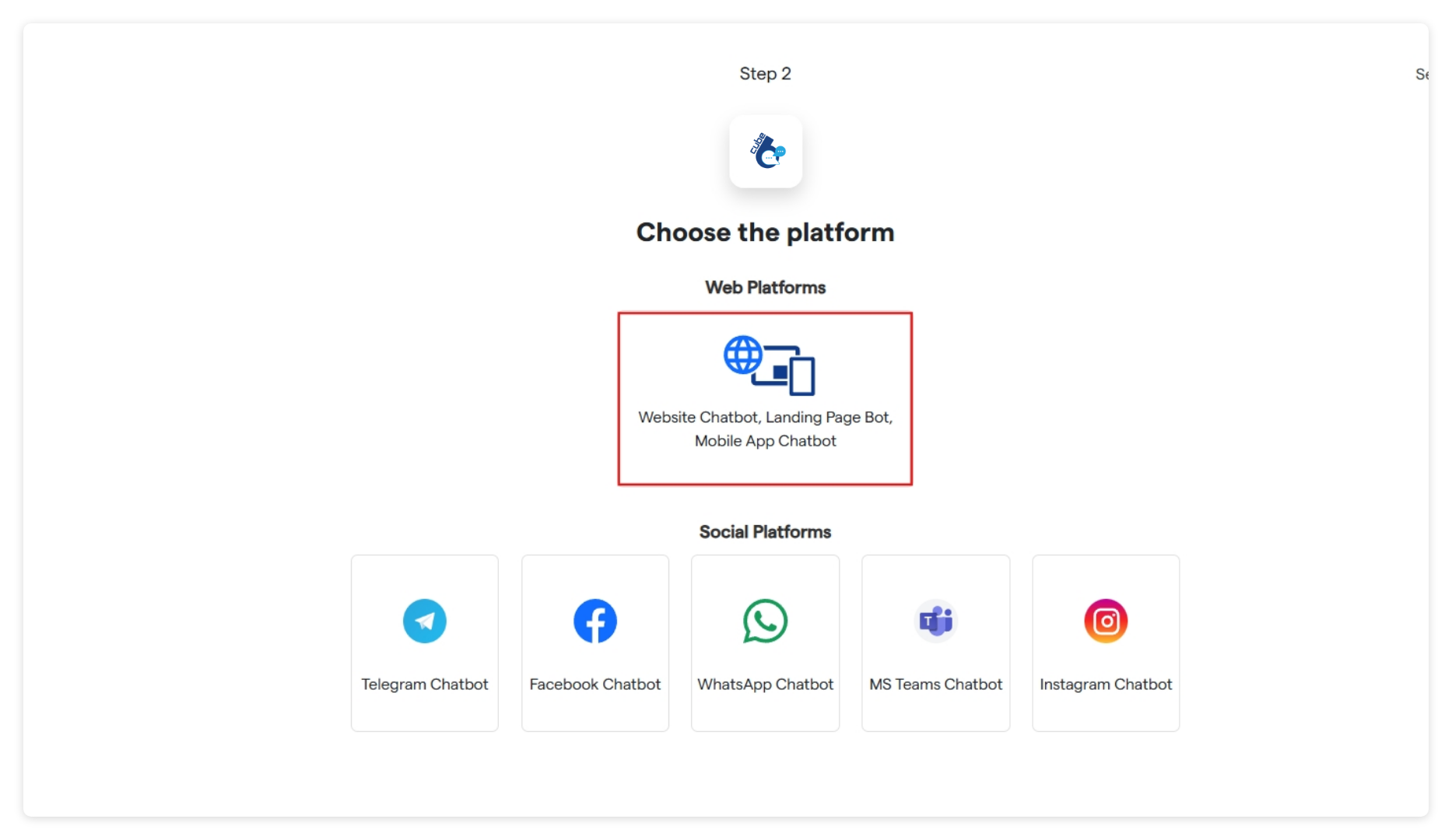
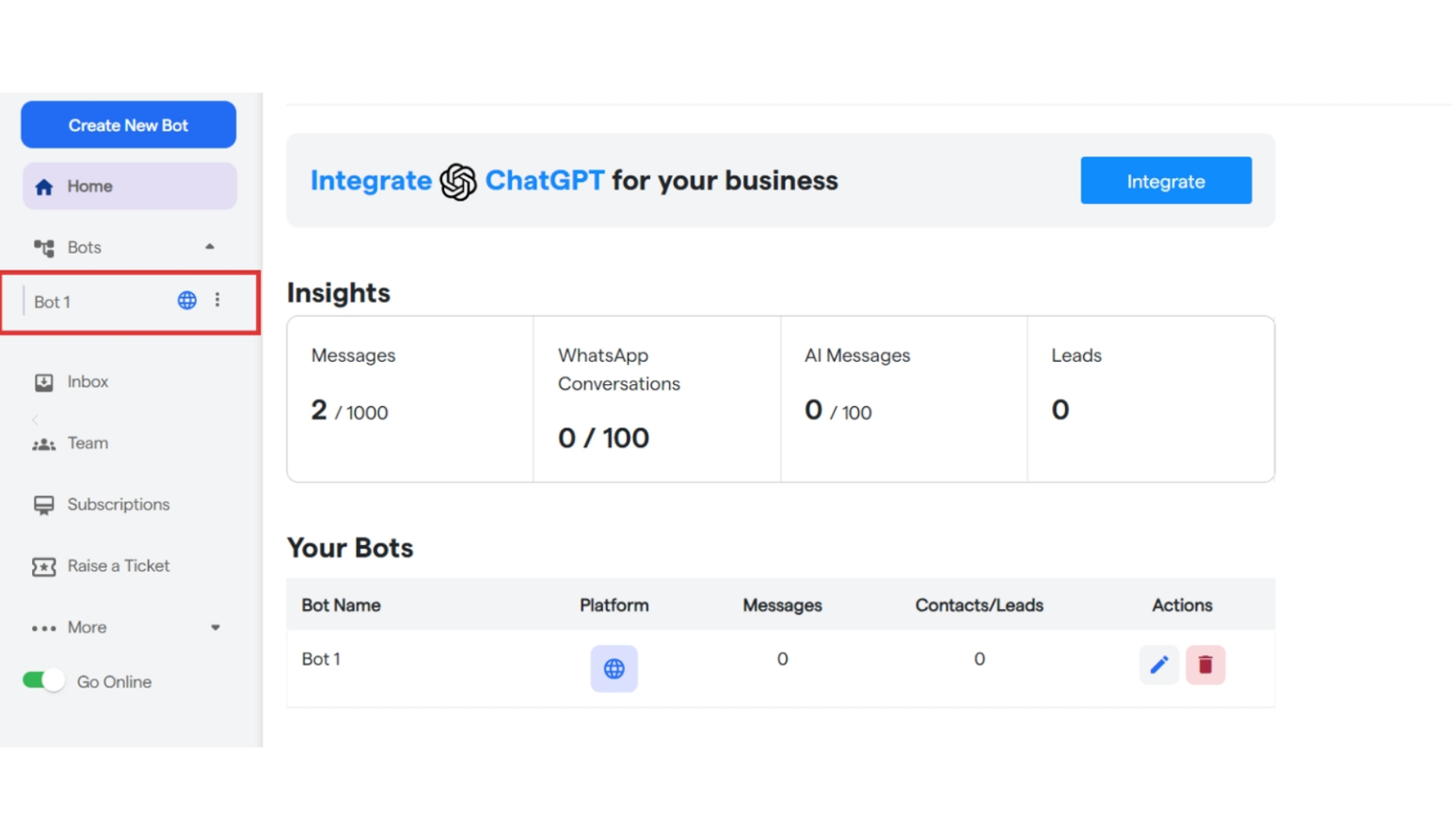
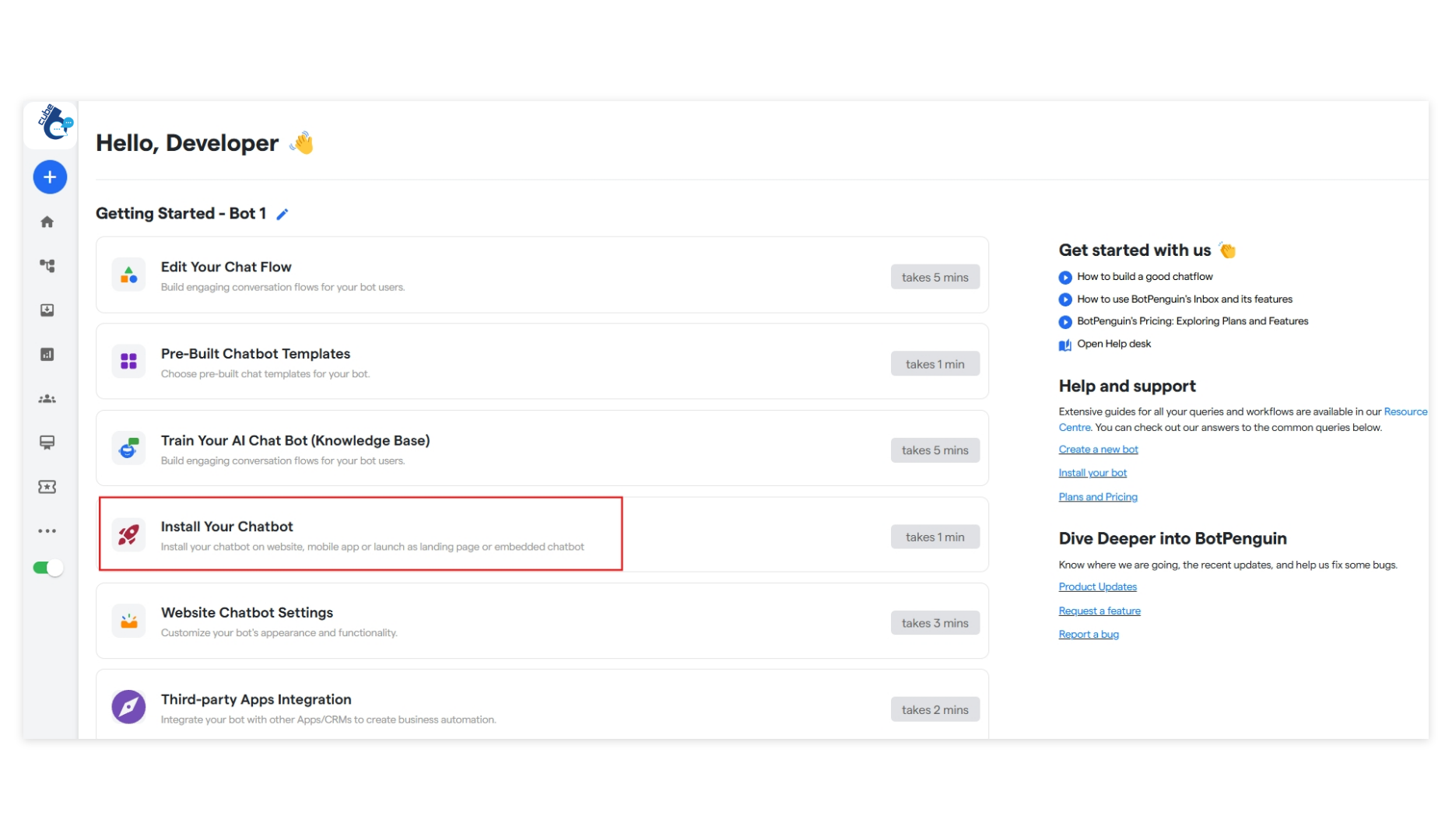
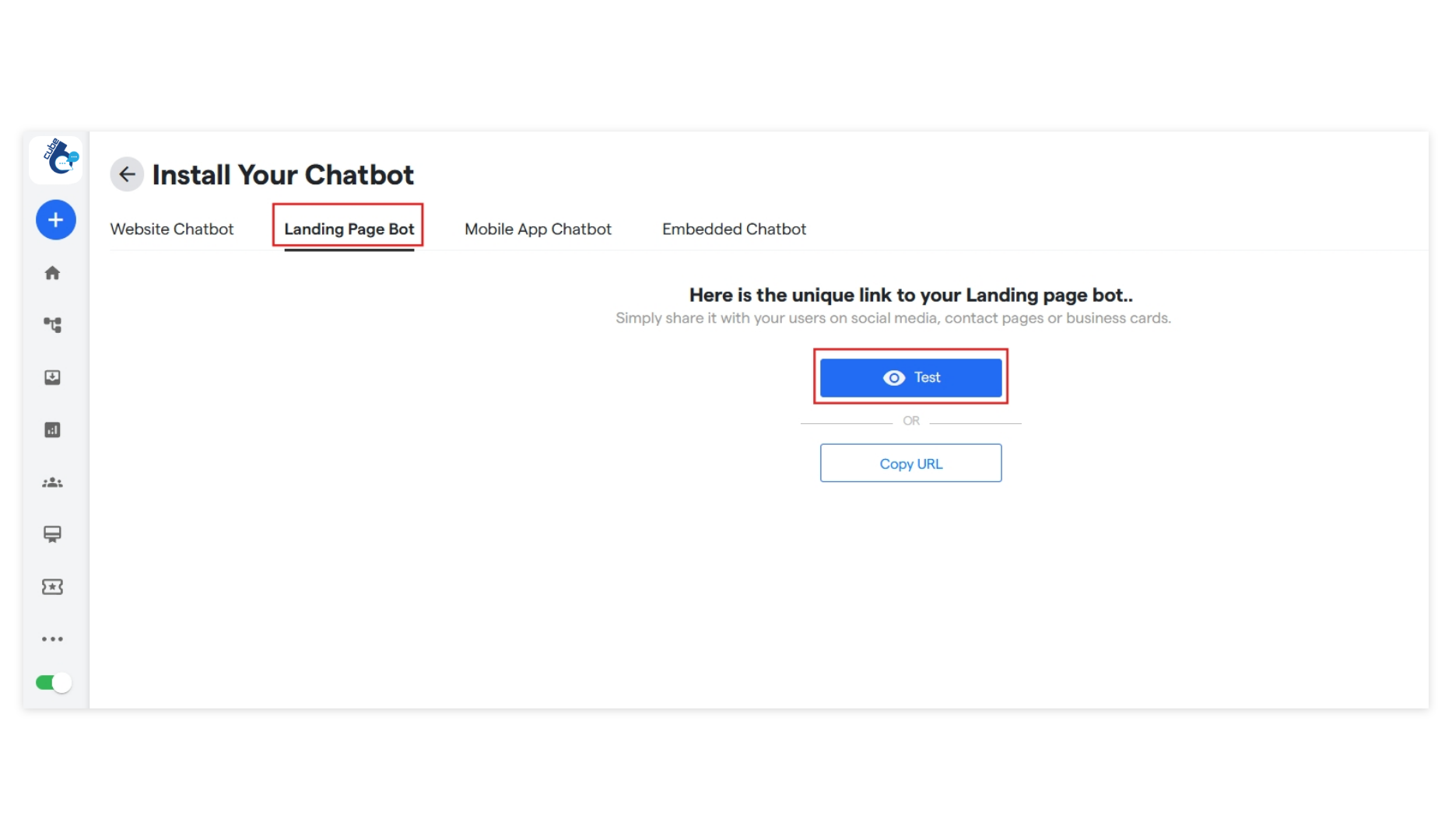
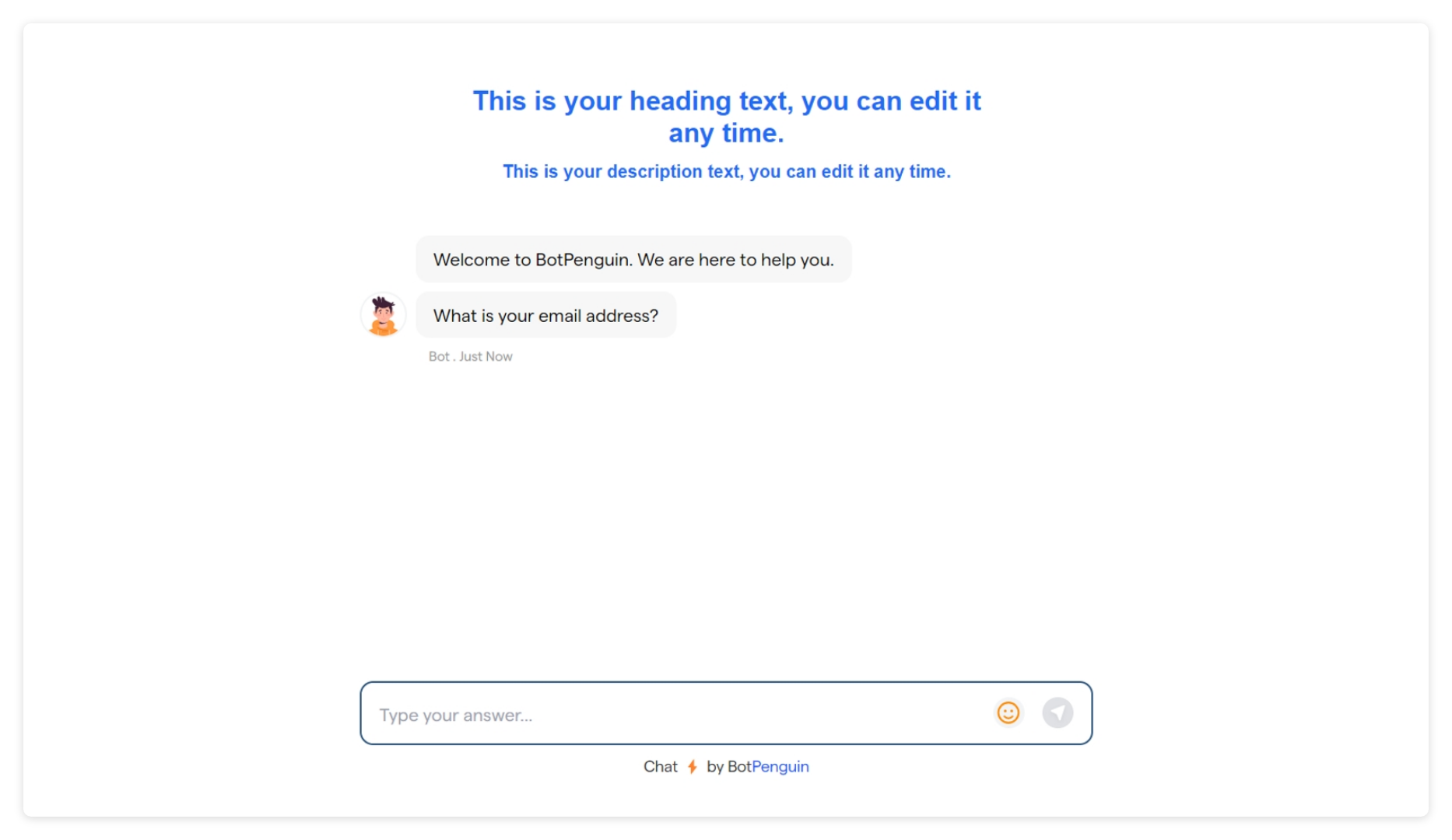
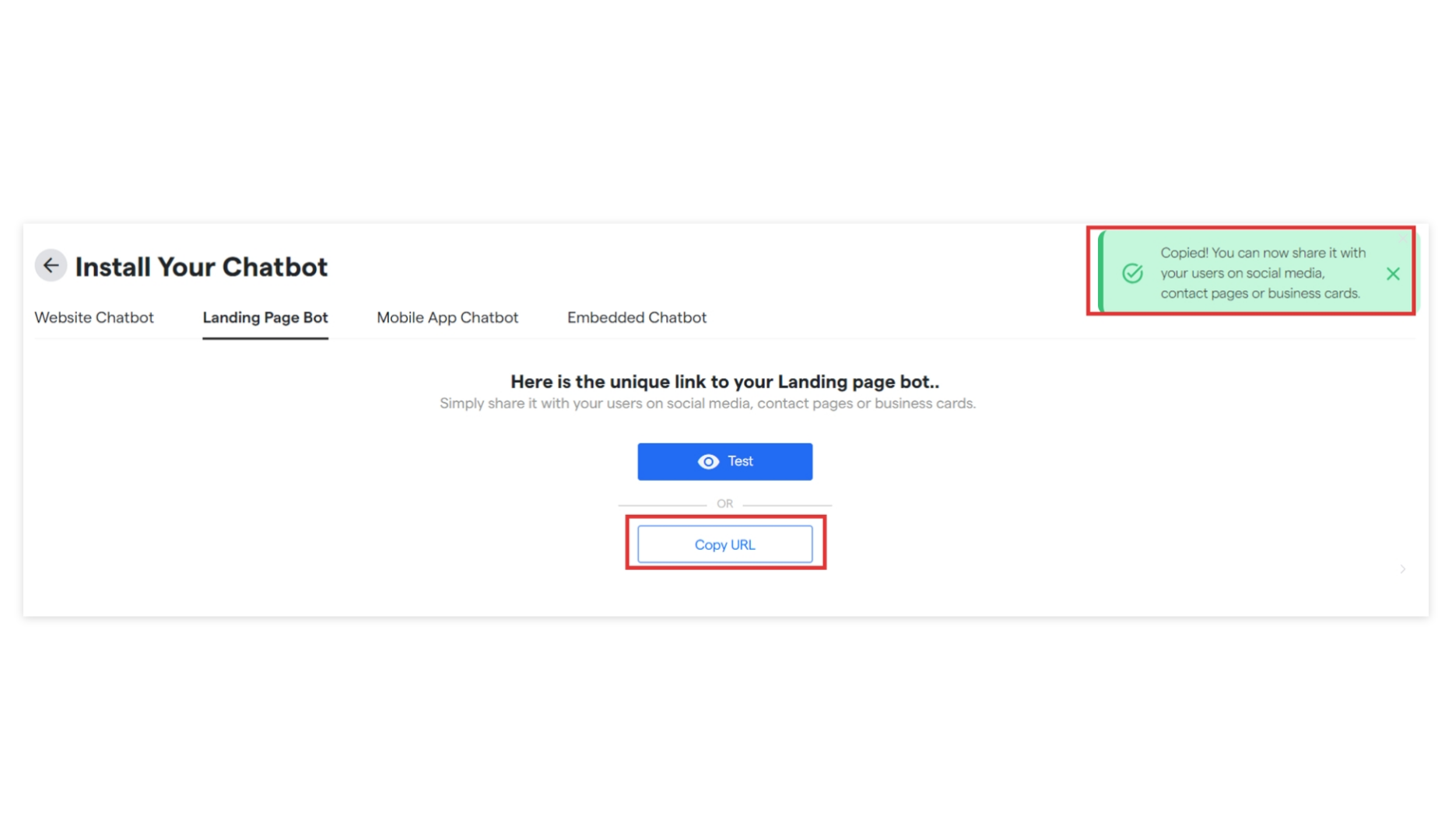
To create your Landing page chatbot and manage all your chatbots, you first need to visit the Cube6 Dashboard 6 Landing Page Chatbot Cube6 Resource Centre 1 Pn To start creating your new chatbot, click β€œCreate New Bot.” Select the primary purpose for creating your bot and proceed further. 6 Landing Page Chatbot Cube6 Resource Centre 2 Pn Select the platform: β€œWebsite Chatbot” 6 Landing Page Chatbot Cube6 Resource Centre 3 Pn You will see a notification: β€œBot has been successfully created.” Select the website chatbot you have created from sidebar. 6 Landing Page Chatbot Cube6 Resource Centre 4 Pn Click on β€œInstall Your Chatbot”. 6 Landing Page Chatbot  Cube6 Resource Centre 5 Pn Select the β€œLanding Page Bot”. 6 Landing Page Chatbot  Cube6 Resource Centre 6 Pn Test: To see how your chatbot will function and appear on your Landing page, click on the β€œTest” button. 6 Landing Page Chatbot  Cube6 Resource Centre 7 Pn Copy URL: Click on β€œCopy URL” and you can share this URL with your users. 6 Landing Page Chatbot  Cube6 Resource Centre 8 Pn

You have created your Landing Page Chatbot.

Embedded Chatbot

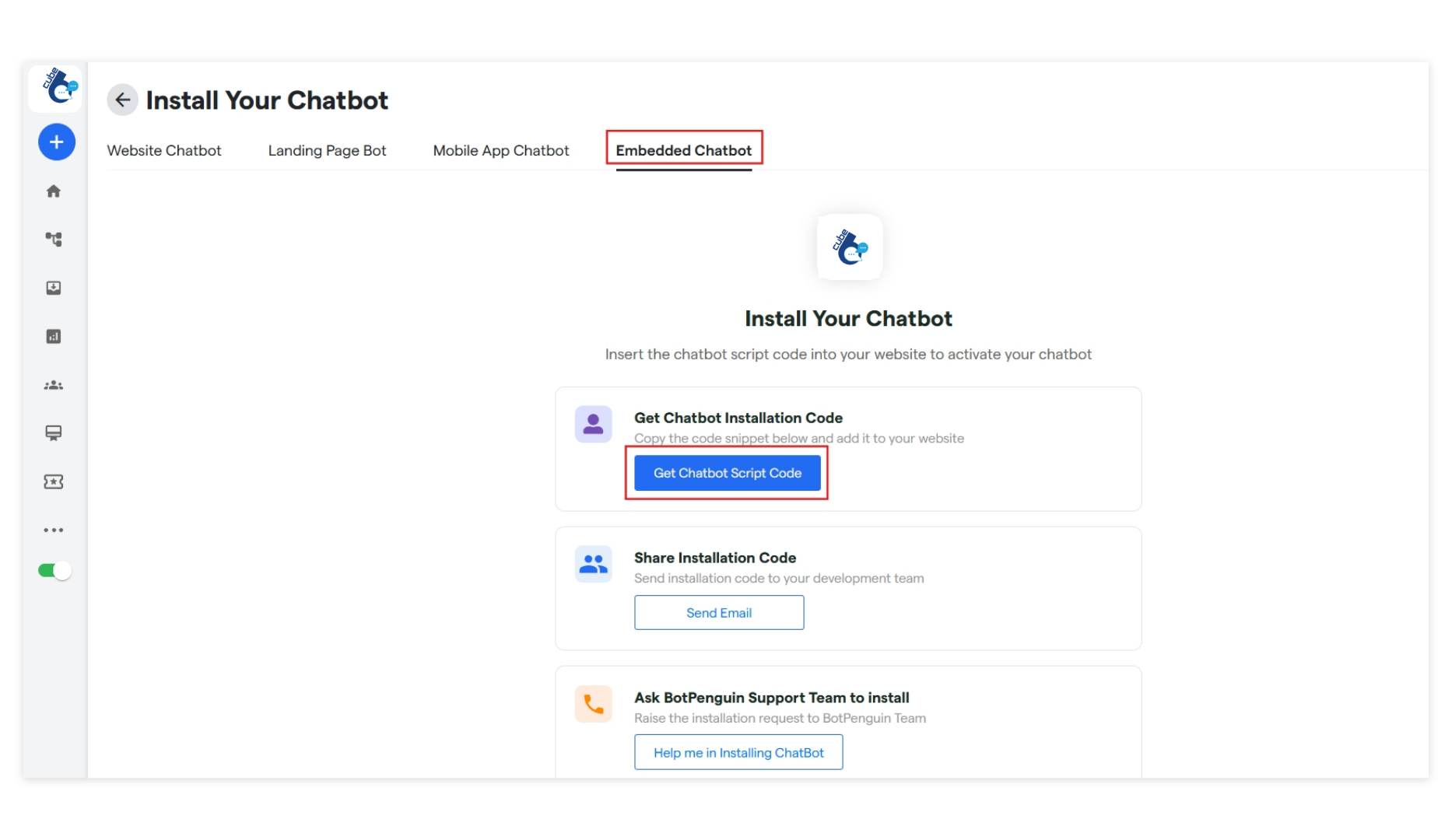
Now, if you want to add a chatbot to your landing page, click on β€œEmbedded Chatbot” 6 Landing Page Chatbot  Cube6 Resource Centre 9 Pn
  • Get Chatbot Installation code: From this section, you can directly copy the script code for your chatbot.
  • Share Installation code: Installation code will be sent directly to your development team via email.
  • Ask Cube6 Support: Our team will assist you in installing your chatbot.
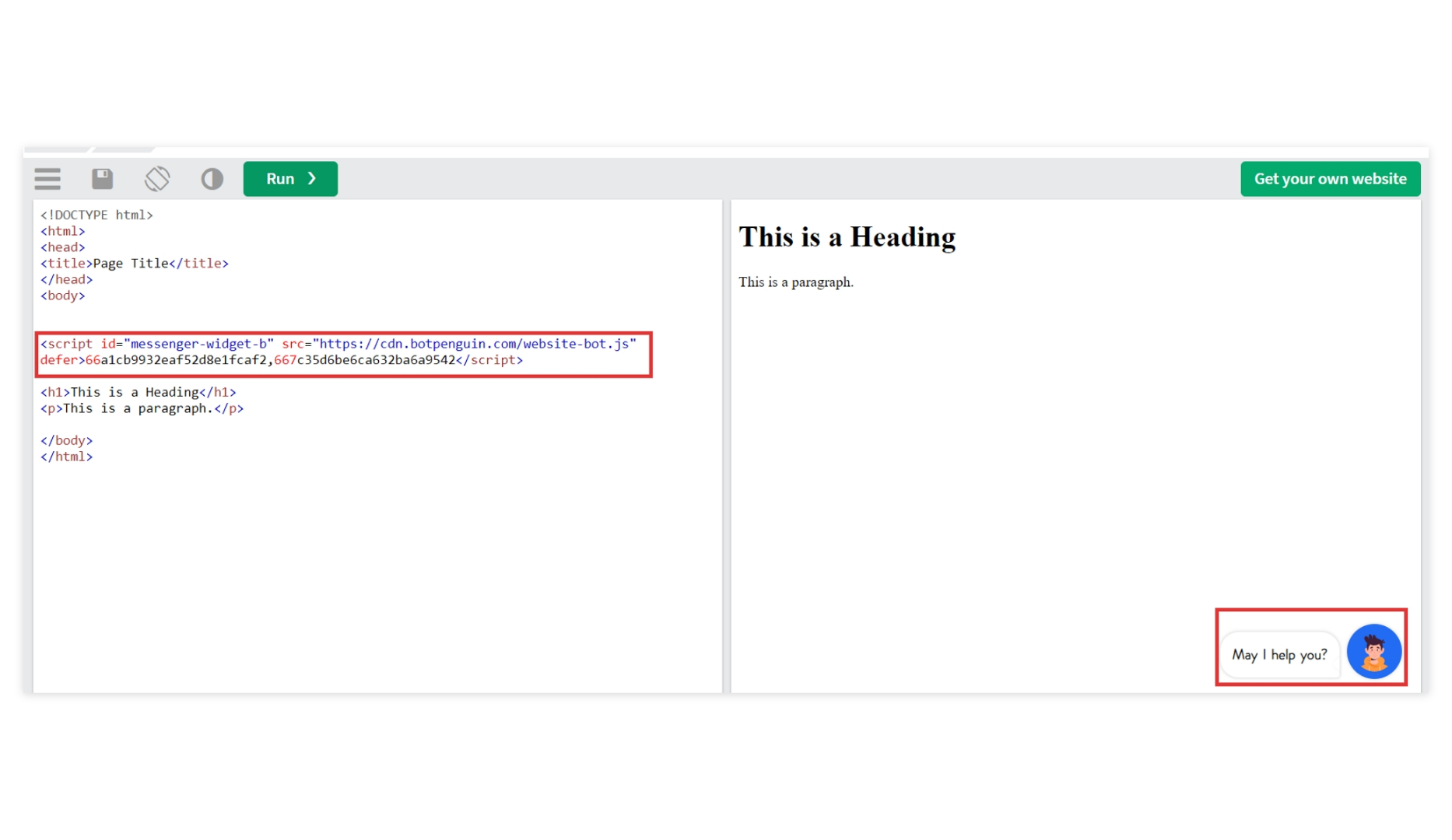
Copy the provided script code and find the HTML file such as the header and paste the code that you copied inside the body tag. 6 Landing Page Chatbot  Cube6 Resource Centre 10 Pn Paste the code inside the body tag, then save and deploy your updated code.